
Learn how to simulate, fake, or change your GPS location on Windows PC and Mac desktops easily — no technical expertise needed.
Changing your GPS location isn't just something mobile users need — Windows and Mac desktop users have plenty of legitimate reasons to simulate a different location too. Whether you're a developer testing a web app with location detection, a privacy-conscious user who doesn't want websites tracking where you are, or someone who wants to access geo-restricted online content, a desktop GPS location changer is incredibly useful.
Unlike mobile devices, Windows and Mac computers don't have physical GPS chips — they rely on Wi-Fi triangulation, IP-based geolocation, and browser APIs to determine your location. This actually makes it easier to override your location on desktop, and AppWizly GPS Location Changer makes the whole process simple, fast, and reliable.
In this step-by-step guide, we'll walk you through exactly how to change your GPS location on both Windows 10/11 and macOS Monterey/Ventura/Sequoia — with screenshots at every step.
There are many practical and legitimate use cases for changing your location on a Windows PC or Mac:
Stop websites, browsers, and apps from pinpointing your exact physical location without permission.
Test location-based features of websites and web apps by simulating users from different cities or countries.
Unlock region-locked streaming content, deals, pricing, or services only available in specific locations.
Override the location Chrome, Firefox, and Edge report to websites via the browser geolocation API.
See how Google Maps, local listings, and search results look for users in a different city or region.
Use simulated location with desktop versions of games or apps that unlock features based on your region.
Follow these steps to change your GPS location on Windows 10 or Windows 11 using AppWizly GPS Location Changer.
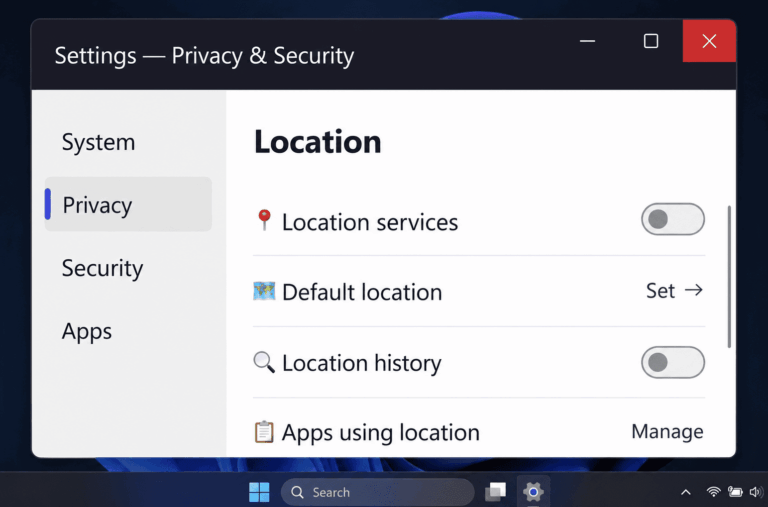
Before installing the GPS Location Changer, disable Windows' built-in Location Services so the app can fully take over your location data without interference.
Toggle "Location services" to Off. This prevents Windows from feeding real location data to apps while GPS Location Changer is running.
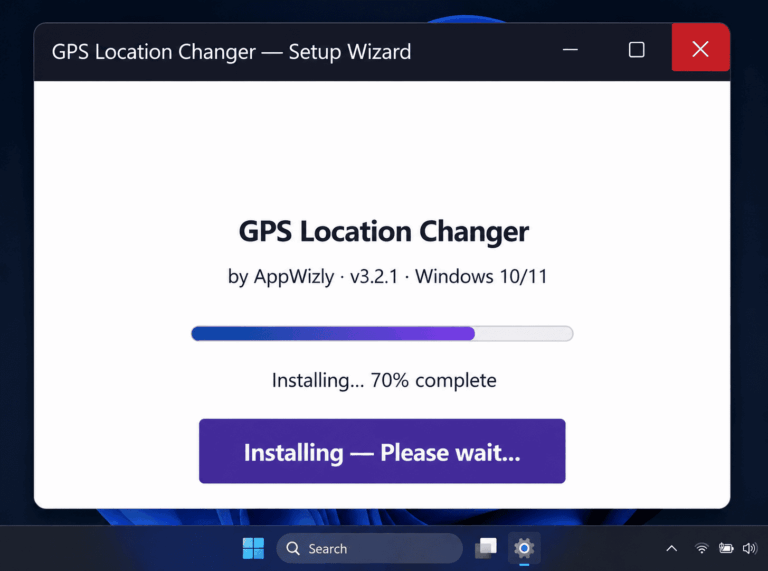
Head to the AppWizly website or Store page and download the GPS Location Changer for Windows installer (.exe file). It supports Windows 10 and Windows 11 on both 32-bit and 64-bit systems.
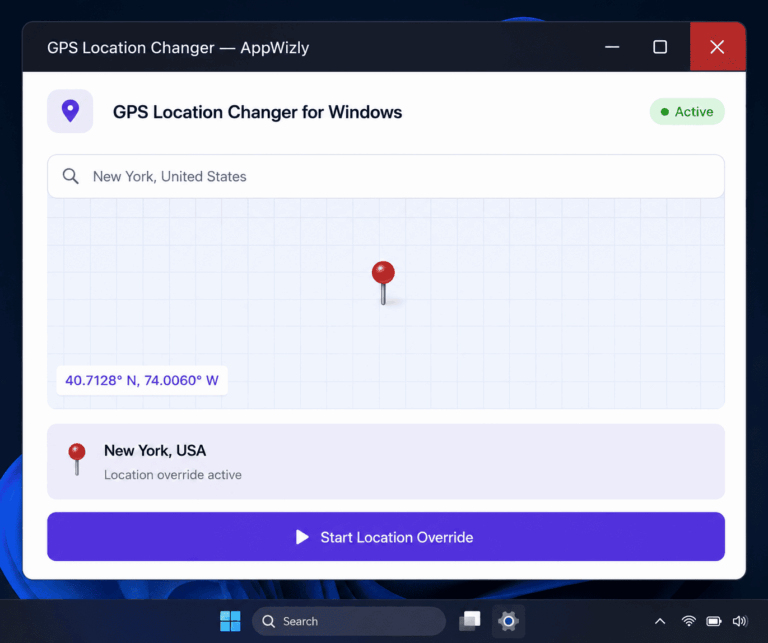
Launch GPS Location Changer from your Desktop or Start Menu. The app opens with a full interactive world map. Use the search bar or click anywhere on the map to set your new virtual location.
All location-aware apps and browsers on your Windows PC will now report your chosen location instead of your real one.
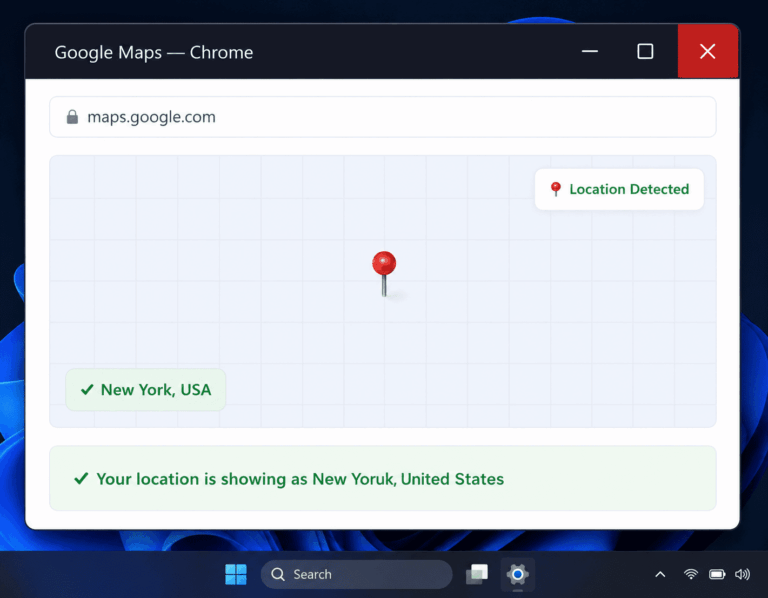
To confirm the location change is working, open your browser and visit a location detection site or check Google Maps. Your location should now appear as the city you selected in GPS Location Changer.
Click the "Your Location" button (the crosshair icon). Google Maps should center on your fake location, confirming the override is working correctly across all browsers.
Here's how to change your GPS location on macOS Monterey, Ventura, or Sequoia using AppWizly GPS Location Changer for Mac.
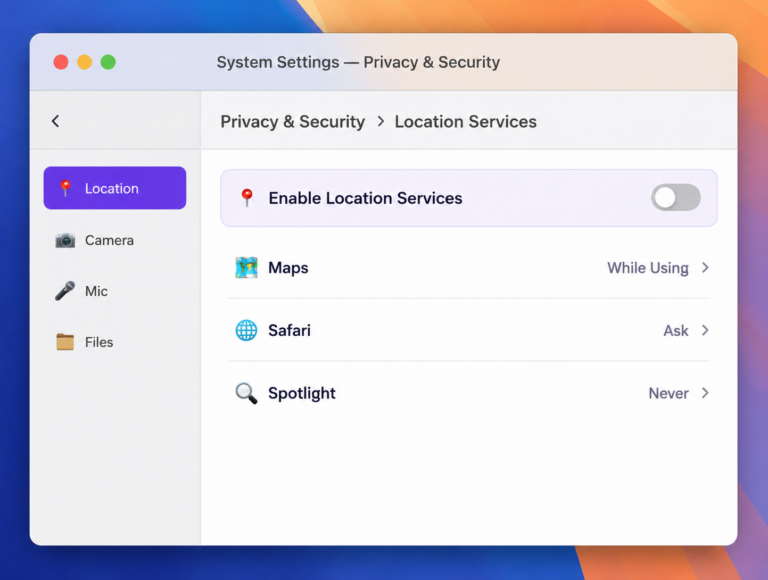
First, disable macOS Location Services to prevent your Mac from reporting your real location to apps while the GPS override is active.
Uncheck "Enable Location Services" at the top of the Location Services panel. You'll be prompted to enter your Mac password to confirm the change.
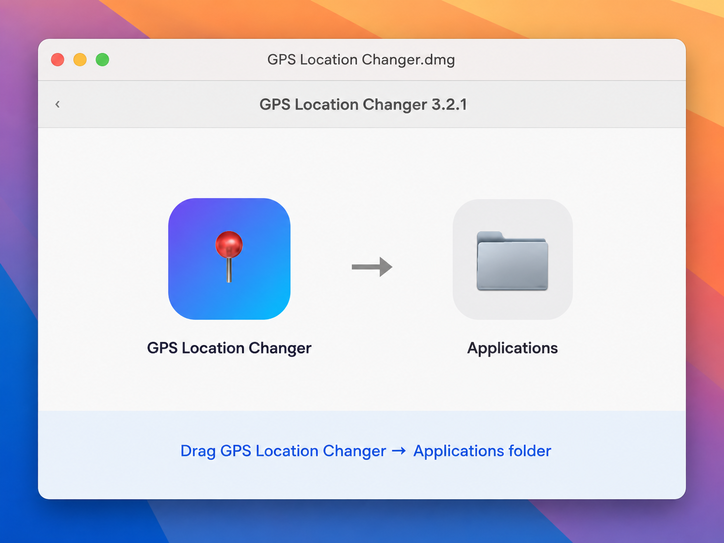
Download the GPS Location Changer .dmg file for Mac from the AppWizly Store page. It's compatible with all Macs running macOS Monterey 12 and above, including Apple Silicon (M1/M2/M3/M4) and Intel Macs.
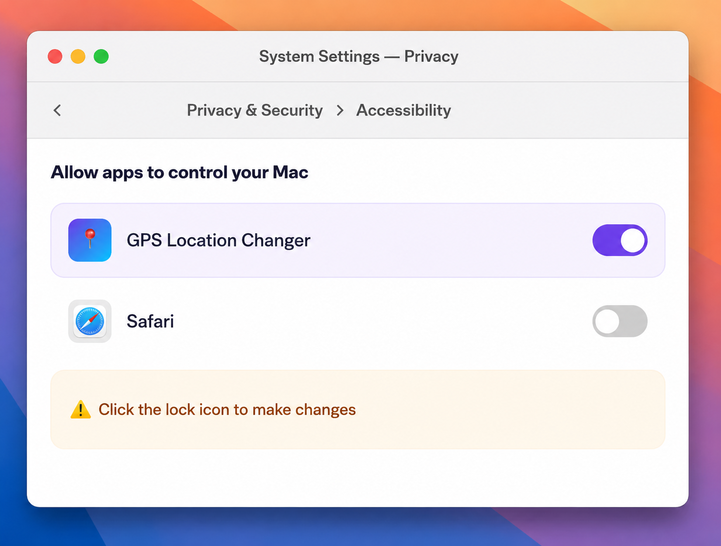
When you launch GPS Location Changer for the first time, macOS will ask for a few permissions needed for the app to work correctly. Grant all of them:
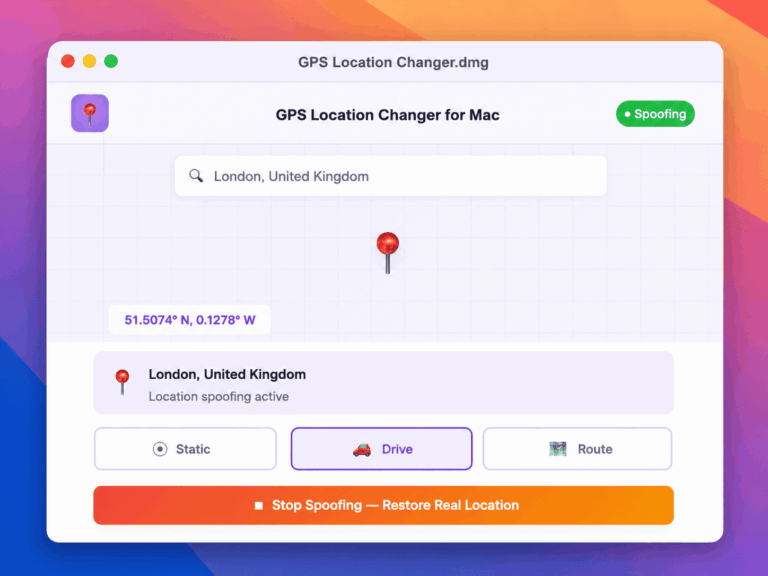
Open GPS Location Changer. The interactive map will load with your current (real) location centred. Search for any destination or click anywhere on the map to set your virtual location.
To stop and restore your real location, simply click "Stop Spoofing" in the app menu bar icon.
Get the best results from GPS Location Changer on desktop with these expert tips:
Some banking apps, enterprise security software, and VPN services actively detect location spoofing as a security measure. Do not use GPS Location Changer while accessing financial or sensitive services. Always use this tool responsibly and in accordance with the terms of service of third-party applications.
Here are answers to the most common questions about changing GPS location on Windows and Mac.
Get the latest AI tips, tutorials, and product updates delivered straight to your inbox.